Microsoft Outlook mobile apps
This guide is a complete walkthrough for setting up the the mobile app versions of Microsoft Outlook to retrieve email from an account hosted on one of our shared servers. Please note that apps change over time, so the details may not exactly match these. Also, the instructions on this page are based on the iOS version of the app, so the app may be different on Android. The overall process should be similar though.
You will need to have configured a mailbox and password. If you have an existing mailbox, but can't remember the password, you can always reset the password through the customer control panel
If you are using the app for the first time
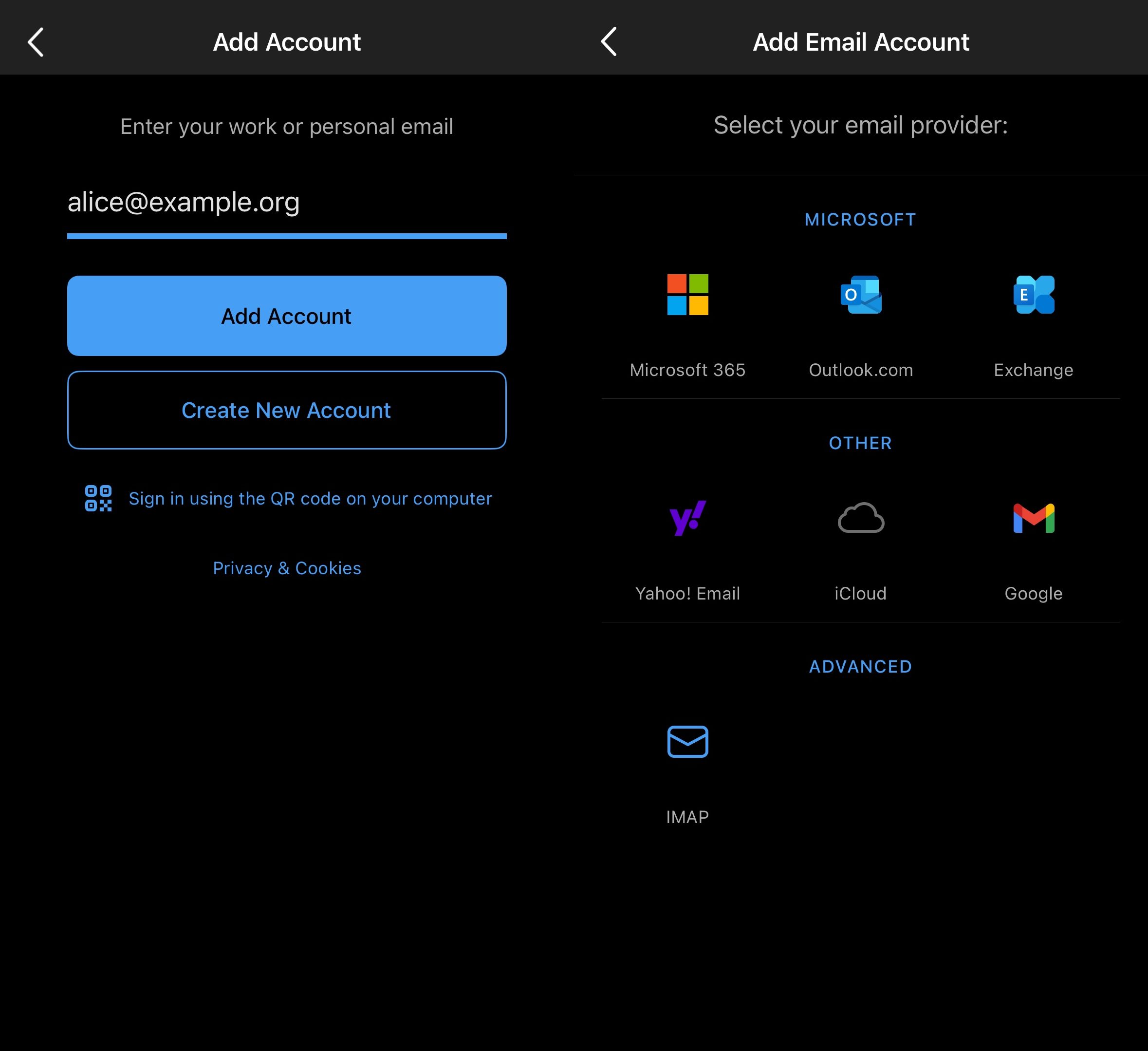
Open the Outlook app, on the screen that appears, press "Add Account", at this point the app may detect Microsoft accounts already logged in on your device, if you add them, you will need to go back to the add account screen using the steps in the next section.
If you already have an account set up in the app
To add another account, tap the heading, or swipe in from the left to open the sidebar, then tap the cog icon. Tap accounts, add account, then tap email account.
Adding an email account
On this screen, it will ask you for your email address, type it in, then press "Add Account". If it gets stuck after you enter your email, press "Set up account manually". Next, the app will ask you to select your email provider, select IMAP. You now need to enter in the server details.
Server Details
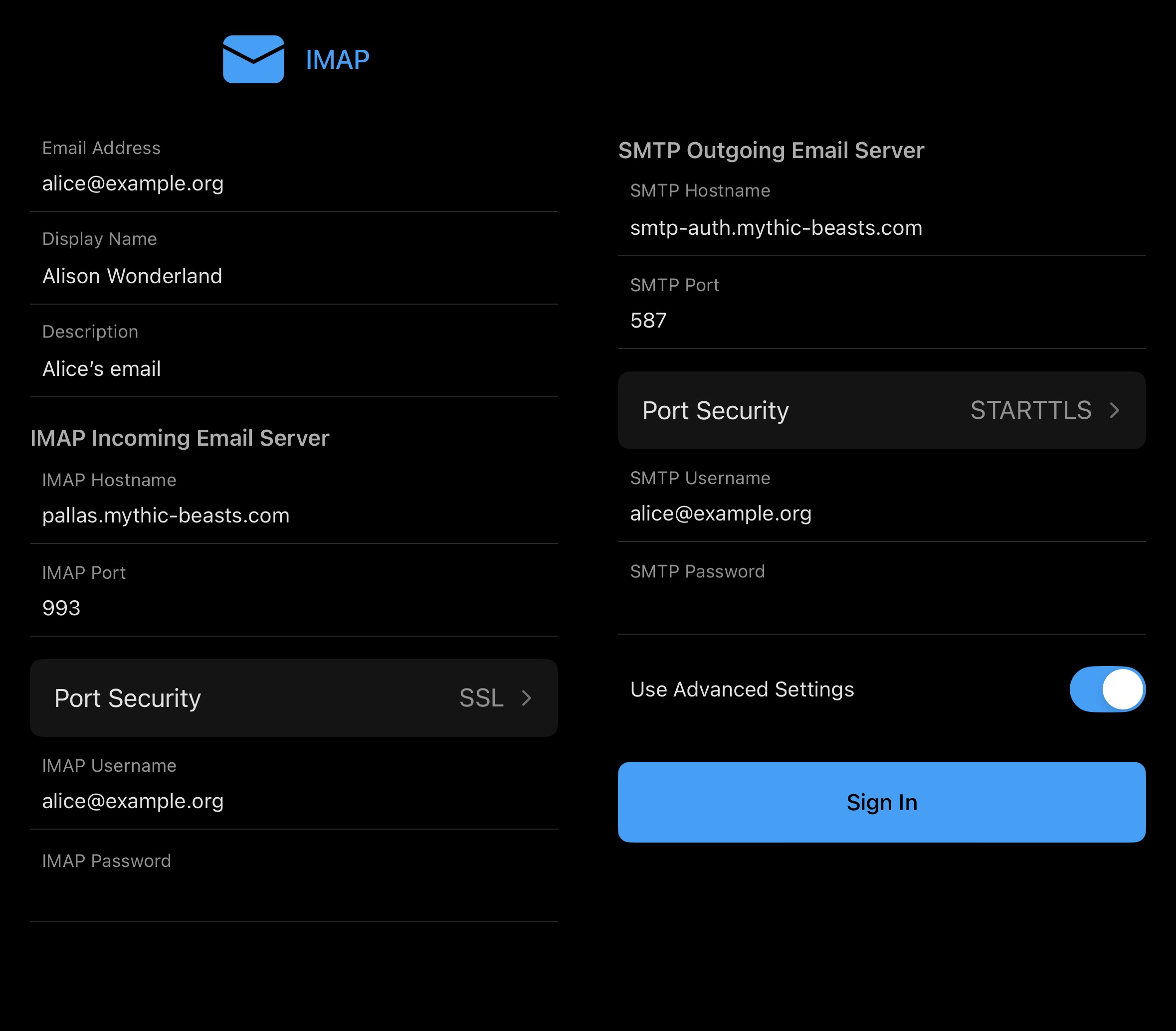 On this screen, enter your name in to the "Display Name" box, this is the name other people will see when they receive email from you, you can also add a description which only you will see.
Then, enter the details for the incoming server in the IMAP section. For the IMAP host name, put mail.mythic-beasts.com. The port should be 993, and check port security is set to SSL For the username and password, use the mailbox you want to set up, and put in the password for that mailbox.
Then enter the details for the outgoing server. The SMTP Hostname is smtp-auth.mythic-beasts.com. Set the port to 465, and check port security is set to SSL. Enter the mailbox password again into the SMTP password box.
Once you've entered in all the server details, press "Sign In", at this point it may ask you questions about your privacy settings. It will also ask you if you would like to add another account.
If you would like to turn off focused inbox, where Outlook separates email into the "Focused" and "Other" categories, tap at the top left of the screen (or swipe in from the left) to open the sidebar, click the gear icon at the bottom left, open the "Email" category, and turn off "Focused Inbox".